
Why Obsidian Is a Great Note-Taking App ? Know Its Features
Why Obsidian is a great note-taking app ( Notion Alternative )- If you are used to taking daily notes then obsidian could be beneficial for you. There are alot of apps like notion, google keep etc. but obsidian is worth using.
In this article, we will explore obsidian and know about its features, how to create and link notes, its setting and more. Before telling more about Obsidian why you should use this app or who should use this app.
What Is Obsidian?
Obsidian is just a vault. It is a folder of notes on your computer. Inside this folder, your notes are individual text files in a future-proof format called Markdown. You can open these files in Obsidian or any other app that reads Markdown (e.g., Text Edit, VS Code, Ulysses, IIA Rider). Even if Obsidian disappears, you still own your data and can open your notes anywhere.
Syncing Across Devices:
You can sync your vaults with cloud services like Dropbox or Obsidian Sync. Obsidian Sync is a paid service with end-to-end encryption and version history. Obsidian’s team doesn’t track user installations, but estimates suggest 5–10 million users.
There are three main things that if you care about them, make picking Obsidian over other note-taking apps a great idea:
- Near zero friction to capture your own ideas.
- Connecting those ideas using links and back links.
- Improving your thinking, learning, and writing while using an offline, local-first format you can take anywhere instead of being stuck in one app or format.
Getting Started With Obsidian
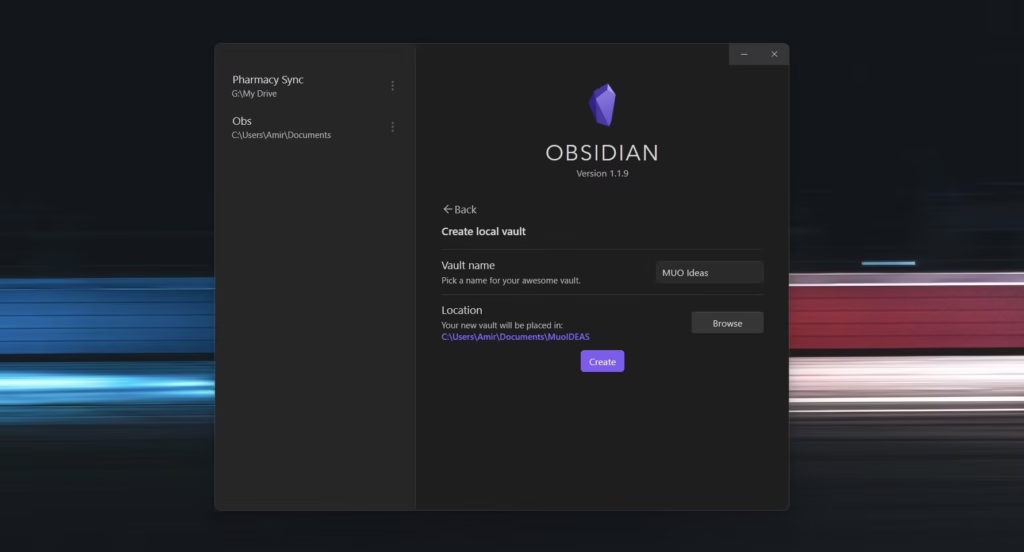
- Open Obsidian and create your first vault.
- Sidebar Features: You will see all the features –
- List of all notes in your vault
- Create new notes
- Create new folders
- Sort notes by file name, modified time, etc.
- Autoreveal current open note
- Expand/collapse folders
- Search and Bookmarks: You can search across the entire vault and bookmark important files.
Working With Notes: Adding the note is very simple. You can –
- Click on a note to view it
- Command/Control-click to open notes in new tabs
- Drag tabs into different panels for multitasking
- Notes can be simple or complex with properties, images, embeds, and personal details
Creating and Linking Notes
You can create multiple notes and link them together. Here are the steps to do it-
- Create your first note and start typing
- Use the graph view to visualize connections
- Linking Notes:
- Hit
[[and type the note name - Hit
]]to close the link
- Hit
- Linked notes appear in the graph view even if they haven’t been created yet
- Command/Control-click to create new linked notes
- Graph view can be reopened anytime and customized
Example Workflow:
- Note: Do things the right way
- Linked notes: Believe things better than you found them and Family phrases to live by
Important Settings
There is some important setting that you should do.
- Automatically Update Internal Links:
- Open Settings → Files and Links → Turn on “Automatically update internal links”
- Prevents broken links when renaming notes
- Default Folder for Attachments:
- Change folder to avoid clutter
- Theme Recommendation:
- Go to Appearances → Manage Themes → Select Minimal.
Common Glitches and Mistakes
You could experience some glitches or mistakes . I have seen few people reporting the problems .
- Don’t import everything from old note apps– Instead Start fresh and link your own thoughts.
- Keep plugins simple by Avoiding advanced tables, kanban boards, and dashboards initially.
- Avoid overfoldering Instead Use big buckets; structure evolves naturally.
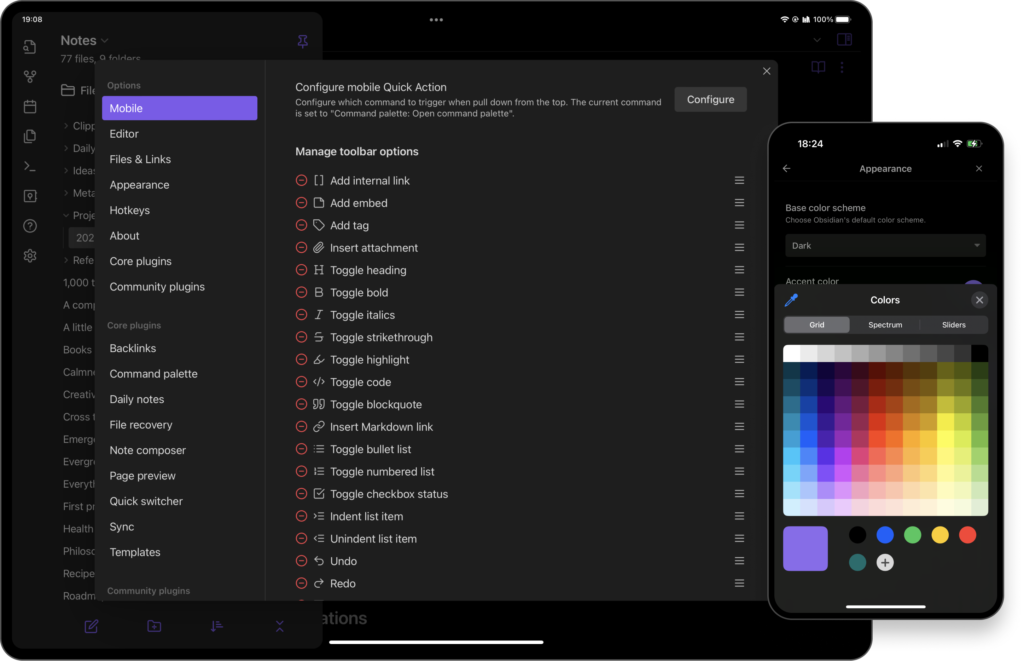
- Learn hotkeys early which will Increases speed and enjoyment.
Essential Hotkeys
These are the keys that you need to use for particular command.
- Formatting:
- Command/Control + B → Bold
- Command/Control + I → Italics
#→ Headings~~→ Strikethrough==→ Highlight>→ Quote block-→ Bullet list- [ ]→ Checklist---→ Divider- Backtick (`) → Inline code
- Triple backticks → Code block
- Navigation:
- Command/Control + Option → Navigate tabs
- Command/Control + F → Find
- Command/Control + T → New tab
- Command/Control + W → Close tab
- Links and Embeds:
[[Note Name]]→ Internal link[Text](URL)→ External link!before a link → Embed note or image
- Command Palette:
- Command/Control + P → Access all commands
Organizing Notes
You can use this setting for organizing notes.
- Quick Switcher: Command/Control + O
- Sidebar Navigation: Create folders and organize notes
- Folder Strategy:
- Big categories first
- Use subfolders as necessary
- Bookmarks: Use Command/Control + P → Bookmark
- Tags: Use
#to categorize notes - Maps of Content: Organize notes by topic or theme
Daily Note Structure:
- Use the calendar section for daily notes
- Link daily thoughts to your broader vault
Different Note Formats
You can organize different types of categories like separate folder for notes, images, audios, tables etc.
- Standard Notes: Text-based Markdown
- Attachments: Images, PDFs, audio recordings, YouTube videos, tweets
- Tables: Use Command/Control + P → Insert Table
- Templates: Reuse note formats
- Properties: Add text, numbers, checkboxes, links, and more with Command/Control +
; - Canvas: Virtual whiteboard for brainstorming and visualization
Using AI With Obsidian
Obsidian does not have AI built-in but You choose AI integration based on privacy needs.
Example: Using Claude AI to Ask questions, Talk to notes, Populate properties.
Note- Keep AI-generated notes separate from your original idea verse
Recommended Note-Taking System
Here is what I recommend you a note-taking system –
- Use the free Idea Verse template
- Folder Suggestions:
- Ace/AC Atlas → Timeless ideas and knowledge
- Calendar → Time-based notes like journals or daily notes
- Efforts → Projects, tasks, productivity
- Subfolders: Create as necessary
- Bookmarks and Tags: Organize for easier navigation
- Maps of Content: Link and connect notes for strong hubs
Summary
So, that is all about the Obsidian. You can use it for free. Here are the features –
- Capture ideas with minimal friction
- Connect notes using links and back links
- Improve thinking, learning, and writing
- Organize notes effectively with folders, tags, maps of content, and graph view
- Embed multimedia and structured properties
- Integrate AI while keeping your original notes intact
Conclusion
I hope you like this article Notion Alternative Obsidian : Why it is a great note taking app. Obsidian is not just a note taking app. It is a poweful system for your thinking, learning and organizing your ideas. I have read reviews and found that this app is very helpful for those who are suffering with ADHD. They are really liking it. You can use of power of taking daily notes and increase your productivity.
If you have any query then comment.